Troubleshooting & FAQ
Quick Diagnostics & System Recovery
Bluefin is designed to be pristine and reliable, but when things go wrong, image-based systems provide simple rollback and reset primitives.
System Rollback
If a kernel or OS update causes an issue, reboot into the previous deployment or roll back:
# Roll back to previous deployment
sudo bootc rollback
Reboot to apply. To inspect current and previous deployment states:
sudo bootc status
Resetting GNOME & Extensions
If desktop extensions or shell tweaks cause graphical issues or freezes:
# Reset GNOME Shell and extensions to system defaults
dconf reset -f /org/gnome/
Cleaning Disk Space & Unused Runtimes
# Clean up dangling containers and unused Flatpak runtimes
ujust clean-system
Reporting Bugs and Verifying Fixes
When something breaks or you hit an issue on your machine, three commands flow diagnostics directly to maintainers:
| Command | What it does |
|---|---|
ujust report | Captures system diagnostics, scrubs sensitive data locally, and opens a pre-filled GitHub issue. |
ujust confirm <issue> | Confirms your hardware hits an existing issue — adds a hardware fingerprint without creating duplicates. |
ujust verify <issue> | After a fix lands in a newer image, confirms the issue is resolved on your hardware. |
Every report is displayed for your review before submission, stored in a gist you own, and never uses automated background telemetry.
Keyboard Layout & Input Issues
Switching Keyboard Layouts Conflicts with Search Light
GNOME's default switching shortcut (Super+Space) conflicts with Search Light. To customize:
- Open Settings → Keyboard → Keyboard Shortcuts → View and Customize Shortcuts.
- Click Typing.
- Set Switch to next input source to your preferred combination (e.g. Shift+Alt).
Extended Keyboard Layouts (e.g. EurKEY)
- Open Gnome Tweaks → Keyboard → toggle Show Extended Input Sources to On.
- Log out and back in.
- Open Settings → Keyboard → add new input source with + → click More... and search for your layout.
Input Method Editor (IME / Fcitx5)
For standard keyboard layouts, see GNOME Help > Keyboard Layouts. For Asian languages or other complex input methods:
- Install Fcitx5:
flatpak install org.fcitx.Fcitx5 - Install the kimpanel GNOME extension.
- Install your language addon (e.g.
flatpak install org.fcitx.Fcitx5.Addon.ChineseAddons). - Configure input methods in Fcitx5 settings. Use Ctrl+Space to toggle. See the Fcitx wiki for details.
Frequently Asked Questions
Am I holding Bluefin wrong?

You can always do what you want, but Bluefin is designed with a specific workflow in mind:
- Containerize your developer environments rather than commingling them with the OS. Define them per project in
devcontainer.jsonfiles managed by Git. - Stick to Flatpaks and Homebrew. The ideal is to leave the core OS image unchanged.
- Follow XDG standards for overriding files.
/etc,/var,/usr/local, and/optare writable. Most per-user overrides live in~/.configand~/.local. - Isolate old-school jank in containers. Mangling packages directly on the host is an anti-pattern.
- Don’t overthink rebooting. Shut down or reboot your PC when you're done using it so staged OS updates apply automatically.
- Hardware matters. Bluefin works best on Linux-friendly hardware.
I have Become Legend.
So who is this for?
Bluefin strongly believes that users should be introduced to Linux via a modern desktop. The market rejected previous-generation Linux desktop conventions, while modern models like ChromeOS and Android succeeded. 95% of users will be fine using their browser and Flatpaks. Bluefin is designed as a zero-maintenance general purpose OS for that 95%, while giving developers cloud-native tooling out of the box.
What about codecs?
Everything you need is included out of the box via Universal Blue.
What's the deal with Homebrew?
See Homebrew is Great on Linux. Homebrew manages CLI utilities without touching the base image or requiring sudo.
Why are there multiple Bluefin images?
Bluefin strives to be the same across all images — the difference is update cadence and specialized tooling:
- Bluefin: Current Fedora base with gated kernel for general desktop use.
- Bluefin Server: FSDK-based, DDI-first minimal server OS.
- Bluefin DX: Developer workstation with containers and devcontainers.
What's with all the Ubuntu influence?
Three of the co-creators of Bluefin worked on Ubuntu at Canonical. Bluefin brings back the classic Ubuntu desktop spirit ("Linux for Human Beings") built on top of modern cloud-native container infrastructure.
Should I trust you?
Everything is built in public, signed with Cosign / GPG, and published via GitHub Actions. See Jorge Castro's bio for background.
Ask Bluefin & Automated Diagnostics
This feature is in Alpha. The menu feature doesn't exist yet.
- Bluefin AI page - gives this page more context on our plans for Bluespeed
In the menu select "Ask Bluefin" to use the chat agent.
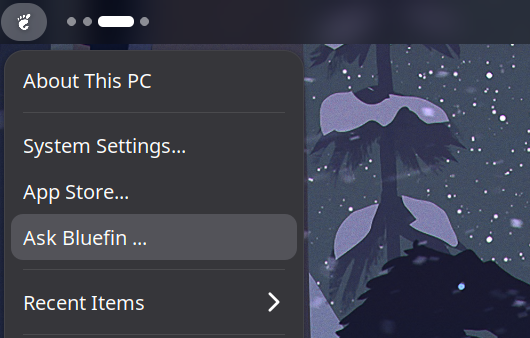
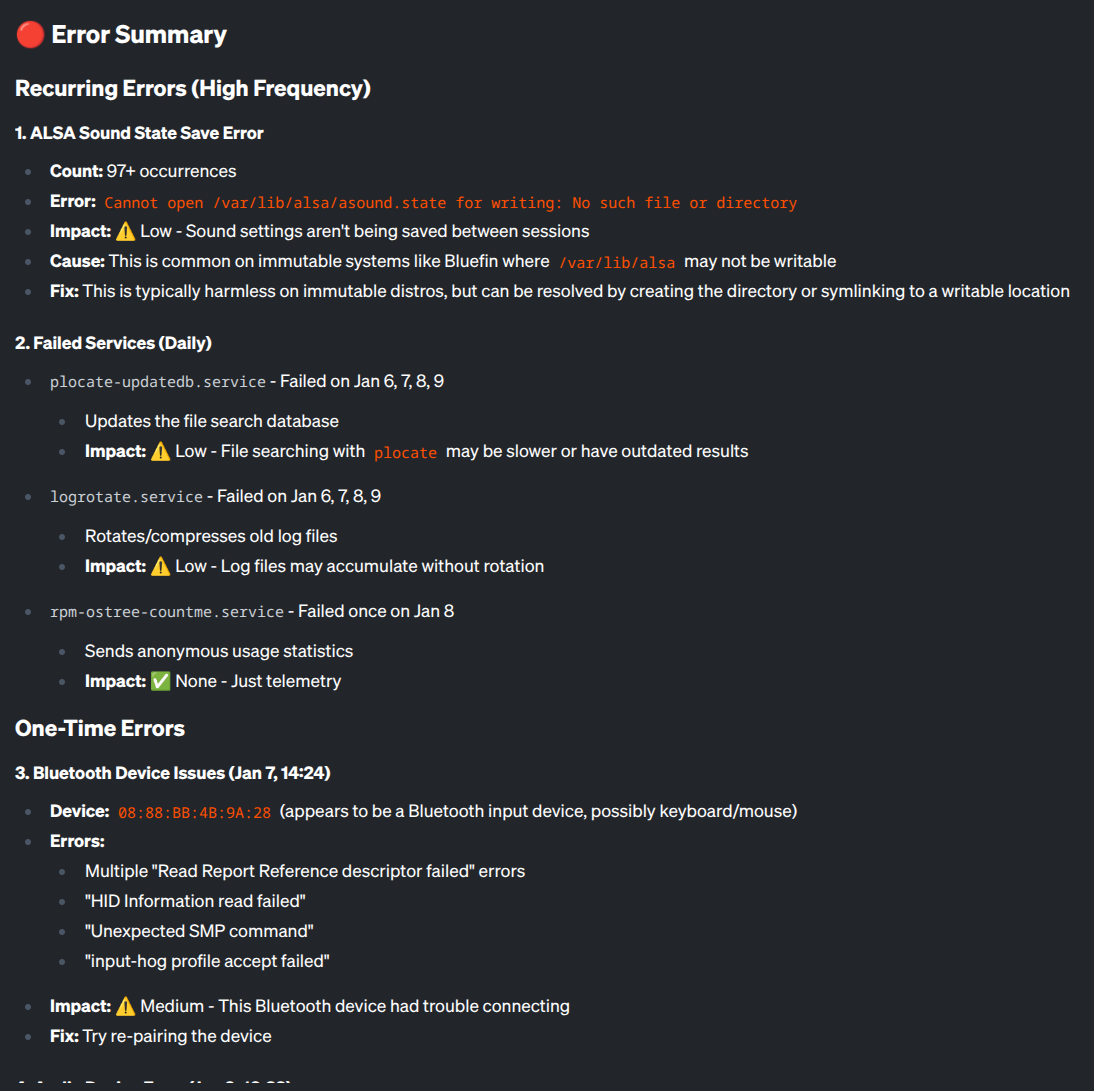
"Ask Bluefin", is a custom operating system agent. For you new users, a system designed to help you learn Linux, without the toil of digging through the internet or being told that you installed the wrong Linux distribution. "Ask Bluefin" is trained on the operating system and its documentation, so it's always learning from the source of truth and tweaked by the community. For you Linux veterans, a power diagnostic tool for your local PC, with built in integration to your servers and cluster ...
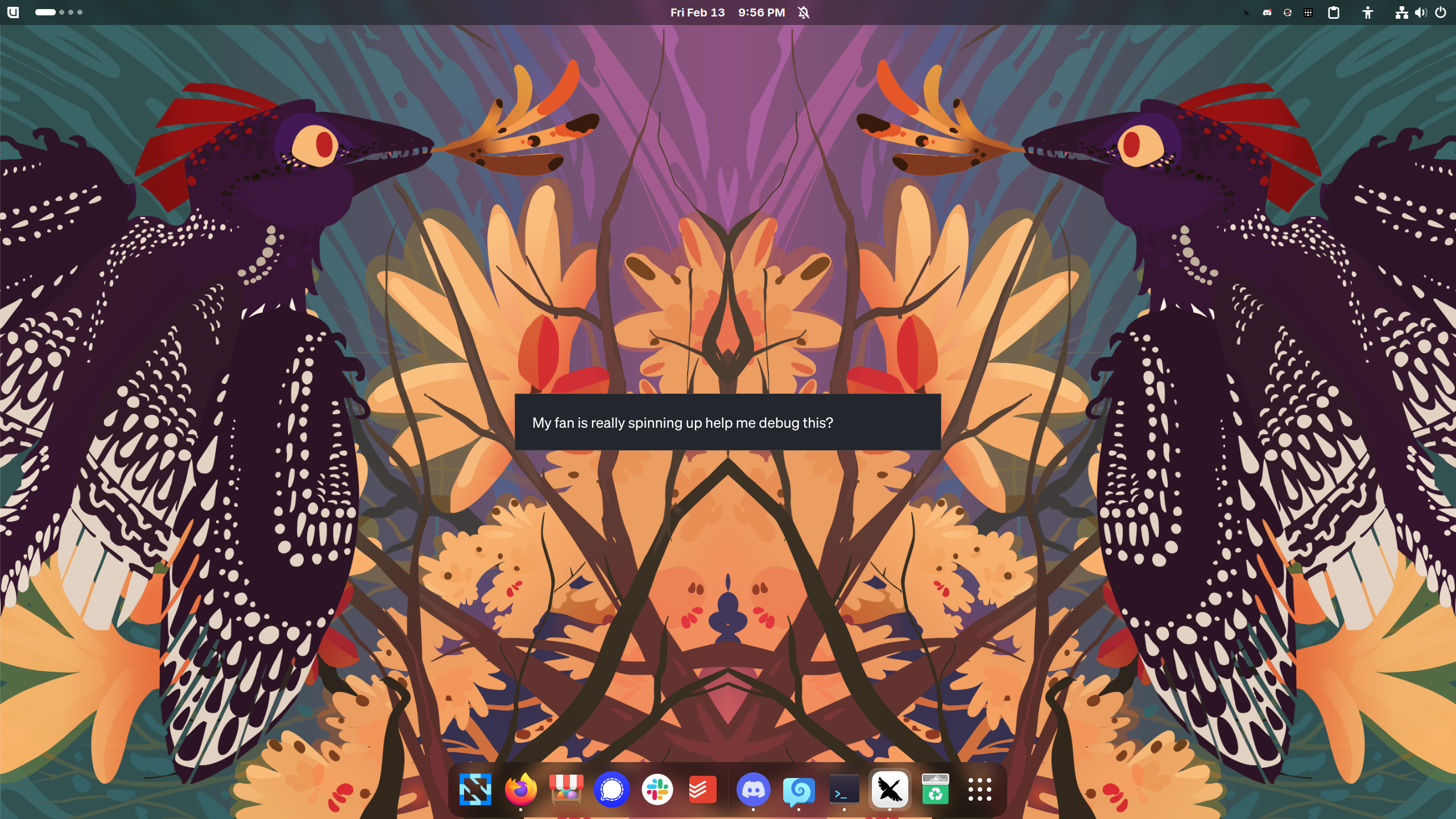
Ctrl-Alt-Shift- g will invoke a quicklaunch so that you can invoke the help agent with one keystroke:
Out-of-the-Box Setup: ujust probe
Bluefin includes built-in automation to set up and launch an AI troubleshooting session:
ujust probe
Running ujust probe automatically:
- Verifies Goose is installed (or prompts you to install it via Homebrew).
- Installs
ublue-os/tap/linux-mcp-serverif it is not already present. - Automatically writes the Goose configuration with
linux-toolsenabled viagoose-mcp-setup. - Checks for a configured LLM provider and starts the session.
Manual Installation & Configuration
If you prefer to install manually or are setting this up on macOS:
- Bluefin / Linux
- macOS
brew install ublue-os/tap/linux-mcp-server
goose-mcp-setup
brew install ublue-os/tap/linux-mcp-server
goose-mcp-setup
On macOS, linux-mcp-server inspects a remote Linux host over SSH. Set LINUX_MCP_HOST: <host> in your ~/.config/goose/config.yaml envs.
Installing ublue-os/tap/linux-mcp-server installs linux-mcp-server, the Goose client (block-goose-cli), and goose-mcp-setup.
linux-mcp-server
Provides system diagnostics and monitoring tools:
- System information (OS, kernel, hardware)
- Process management
- Service monitoring (systemd)
- Log access (journalctl)
- Network diagnostics
- File system inspection
Repository: rhel-lightspeed/linux-mcp-server
Configuration Steps
Step 1: Configure Goose Extension
Running goose-mcp-setup creates ~/.config/goose/config.yaml with the linux-tools extension pre-configured:
extensions:
  linux-tools:
    enabled: true
    type: stdio
    name: linux-tools
    description: Linux system administration and diagnostics
    cmd: /home/linuxbrew/.linuxbrew/bin/linux-mcp-server
    envs:
      LINUX_MCP_USER: <your-username>
      LINUX_MCP_LOG_LEVEL: INFO
      LINUX_MCP_SSH_KEY_PATH: ~/.ssh/id_ed25519
    timeout: 30
    bundled: null
    available_tools: []
    args: []
Step 2: Configure your LLM Provider
Goose supports both hosted providers and local models. Run:
goose configure
- GitHub Copilot: Select
GitHub Copilotto authenticate directly with your GitHub account. - Hosted APIs: Select Anthropic, OpenAI, Gemini, etc., and enter your API key when prompted.
- Local Models: llmman manages models as containers and serves an OpenAI-compatible endpoint:
brew install llmmanorg/tap/llmman
llmman serve
Configure Goose to use your local model in ~/.config/goose/config.yaml:
GOOSE_PROVIDER: ollama
GOOSE_MODEL: qwen3:8b
OLLAMA_HOST: http://localhost:17434
LM Studio (brew install lm-studio) is a graphical alternative — load a model, start the local server, and select LM Studio in goose configure.
Step 3: Start Troubleshooting
Start an interactive session:
ujust probe
# or directly:
goose session
Security Considerations
- MCP servers run with your user permissions
- Only install MCP servers from trusted sources
- Review server documentation for required permissions
- Use environment variables for sensitive credentials (don't hardcode in config)
- Regularly update MCP servers to get security patches
Further Reading
Automated Troubleshooting
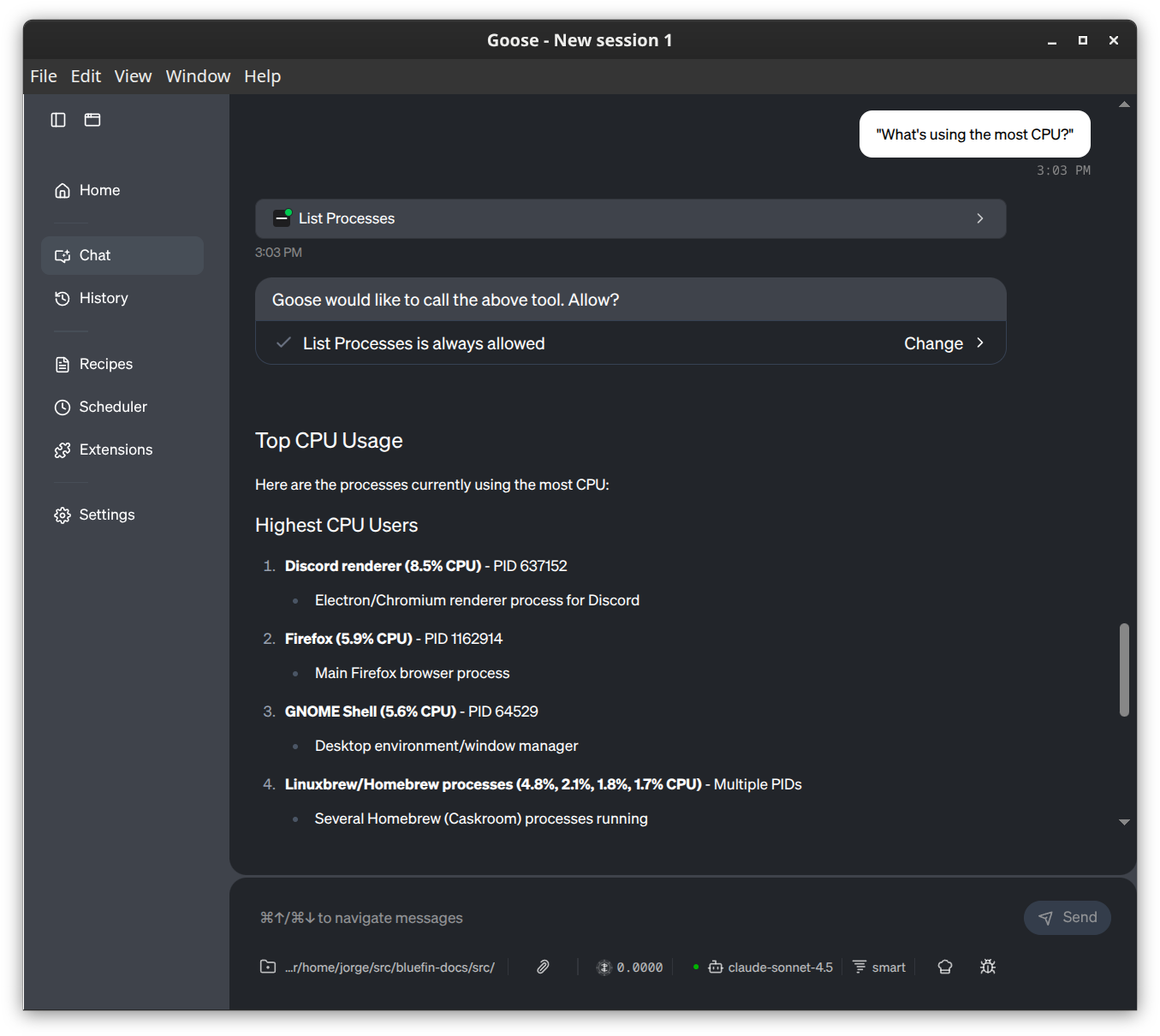
You can ask the tool things about your system using natural language:
System Health
Note: these are taken from the linux-server-mcp page but you get the idea:
| I want to check... | Use this tool | Example Prompt |
|---|---|---|
| OS / Kernel | get_system_information | "What OS version is this?" |
| CPU Load | get_cpu_information | "Is the CPU overloaded?" |
| Memory / RAM | get_memory_information | "How much free RAM do I have?" |
| Disk Space | get_disk_usage | "Are any disks full?" |
| Hardware | get_hardware_information | "List the PCI devices." |
Troubleshooting
| I want to check... | Use this tool | Example Prompt |
|---|---|---|
| Running Apps | list_processes | "What's using the most CPU?" |
| Process Details | get_process_info | "Inspect process ID 1234." |
| Services | list_services | "Are all services running?" |
| Service Status | get_service_status | "Why did nginx fail?" |
| System Logs | get_journal_logs | "Show errors from the last hour." |
| Service Logs | get_service_logs | "Show recent logs for sshd." |
| Specific Log File | read_log_file | "Read the last 50 lines of /var/log/messages." |
Network
| I want to check... | Use this tool | Example Prompt |
|---|---|---|
| IP Addresses | get_network_interfaces | "What is my IP address?" |
| Open Ports | get_listening_ports | "What ports are open?" |
| Connections | get_network_connections | "Who is connected to port 22?" |
Files & Storage
| I want to check... | Use this tool | Example Prompt |
|---|---|---|
| Disk Partitions | list_block_devices | "Show me the partition layout." |
| Large Folders | list_directories | "Find the largest folders in /var." |
| Recent Changes | list_files | "What files in /etc changed recently?" |
| Read File | read_file | "Read /etc/fstab." |
Pro Tips
-
Combine Tools: You don't need to ask for one thing at a time.
"Check CPU usage and show me the top 5 processes."
-
Filter Logs: Be specific with time and priority to save context window.
"Show me
errorpriority logs from the last30 minutes." -
Remote Hosts: If you configured SSH, just ask to run on a specific host.
"Check disk usage on
webserver1."