Applications & Command Line
Bluefin is designed to be used by normal people, but the command line is our passion. Therefore we invest in both the graphical desktop experience and the terminal workflow. Slay out.
Graphical Applications
Bluefin follows a Flatpak-first approach for desktop software. Applications run isolated from the host operating system and are sourced from Flathub.
- Bazaar — the default application store. It filters abandoned applications and those depending on obsolete Flatpak runtimes.
- Warehouse — manage Flatpak lifecycles, inspect installed runtimes, clean up leftovers, and pin or downgrade versions.
- Flatseal — graphical permissions manager for fine-grained Flatpak filesystem, network, and device access control.
Command Line Applications & Homebrew
brew (Homebrew) is the primary package manager for installing command line applications and developer utilities without polluting the base OS image.
Note that Homebrew Cask functionality is macOS-specific and non-functional in Bluefin; Flatpak is used for GUI apps instead. Other tools like uv, pixi, asdf, and mise work smoothly when installed via Homebrew.
Generally speaking, if you need a CLI tool or utility, use Homebrew. If you need a library and dependencies for development work, use a container. This keeps everything pristine and reproducible.
Message of the Day and fastfetch
The project prefers to have functional bling that is slick but also serves a purpose. New terminals (Ctrl+Alt+Enter) display a message of the day with system information:
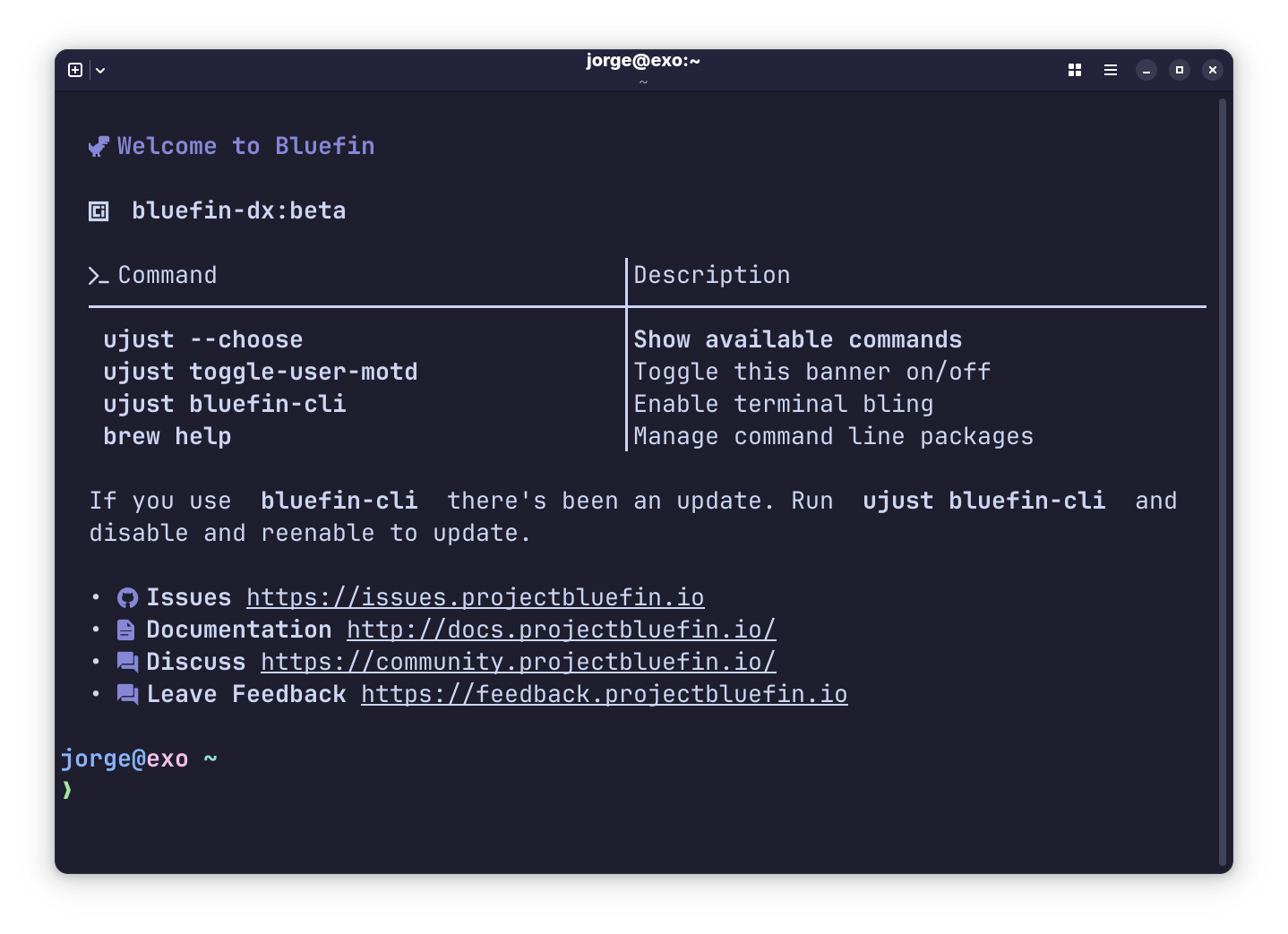
The bluefin-dx:beta line is the name of the OS image, reminding you if you are on a pinned image, with quick reference to common commands. Toggle it on and off with ujust toggle-user-motd.
We love to flex our machines. Run fastfetch:
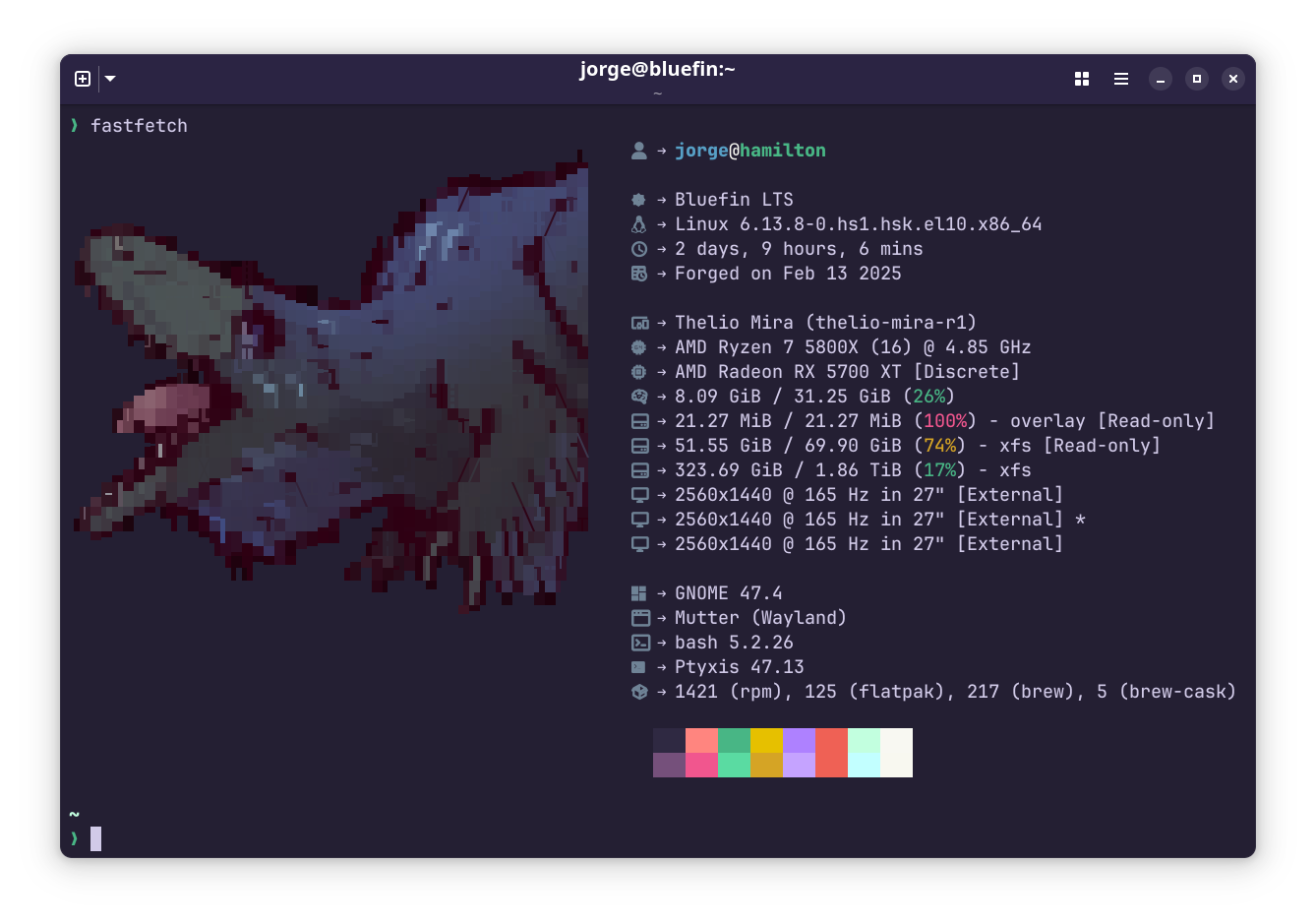
This screen shows hardware information, username, machine name, and kernel version. Each Bluefin image has a "Forged On" date commemorating the initial installation of the machine:

Terminal Configuration
Changing the Default Terminal Shell
Bluefin uses bash by default but also ships with fish (Donate) and zsh on the image for convenience.
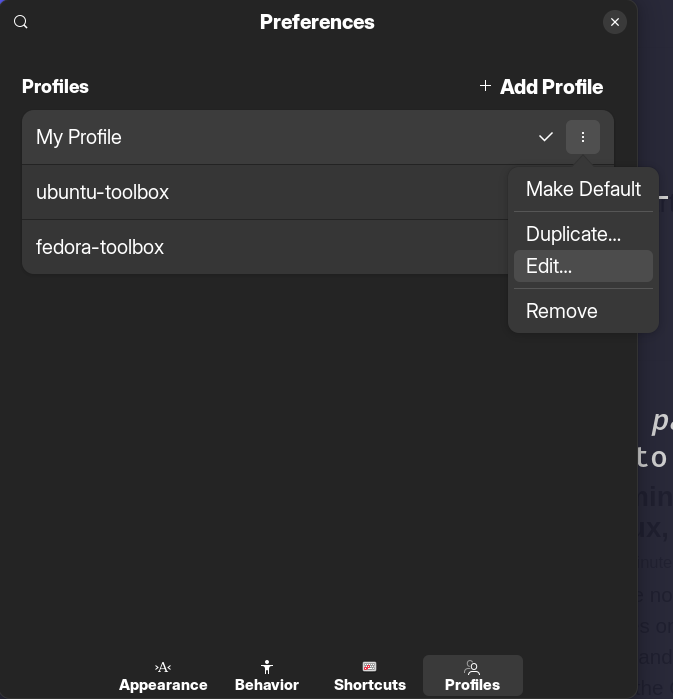
Bluefin ships Ptyxis as the default terminal (named Terminal in the app launcher). It is strongly recommended that you change your shell via the terminal emulator instead of system-wide. First install the shell you want with brew install zsh or brew install fish. Click on the Terminal settings and edit your profile:
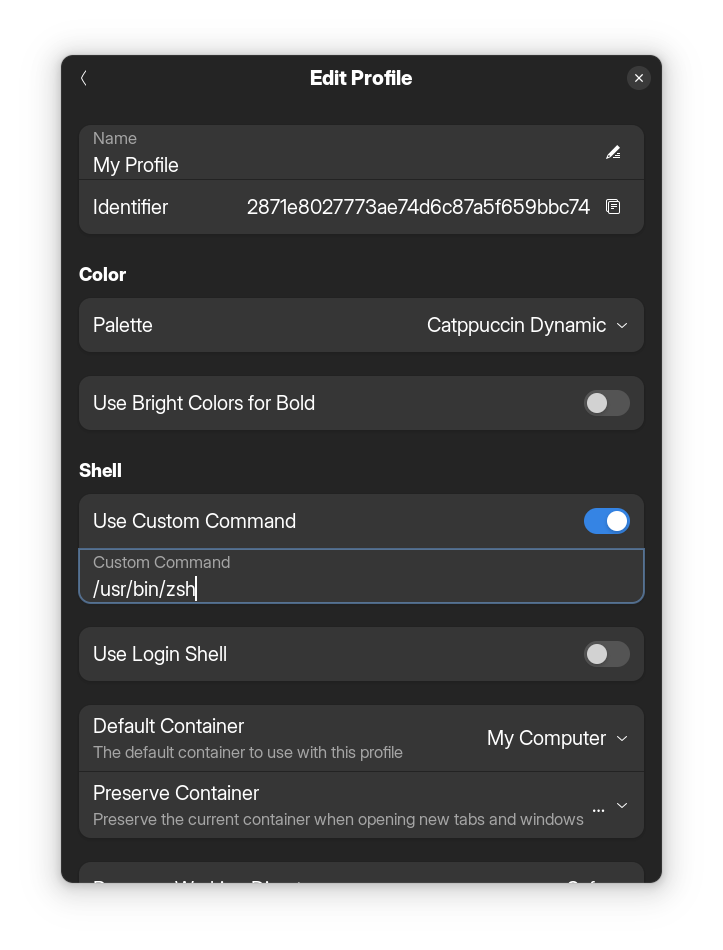
Select "Use Custom Command" and add your shell:
- zsh:
/home/linuxbrew/.linuxbrew/bin/zsh - fish:
/home/linuxbrew/.linuxbrew/bin/fish
Maintainer Recommended GNOME Extensions
Here are GNOME extensions that the maintainers recommend to round out your desktop experience. Support extension authors by donating to the ones you love!
For a Tailscale GUI, we recommend the official systray application: tailscale configure systray --enable-startup=systemd and reboot.
Fonts
Homebrew is also used for installing fonts. Browse Homebrew Cask Fonts and install your favorite fonts into ~/.local/share/fonts.
Microsoft Fonts
If you need Microsoft fonts for document compatibility:
brew tap colindean/fonts-nonfree && brew install --cask font-microsoft-office font-microsoft-aptos font-arial font-arial-black font-courier-new font-times-new-roman font-georgia


